Creating website pages
This section of the website style guide outlines how key types of pages are planned, structured and ‘built’ in Squiz. Further details are outlined in Key website page elements and Other website page elements (A to Z).
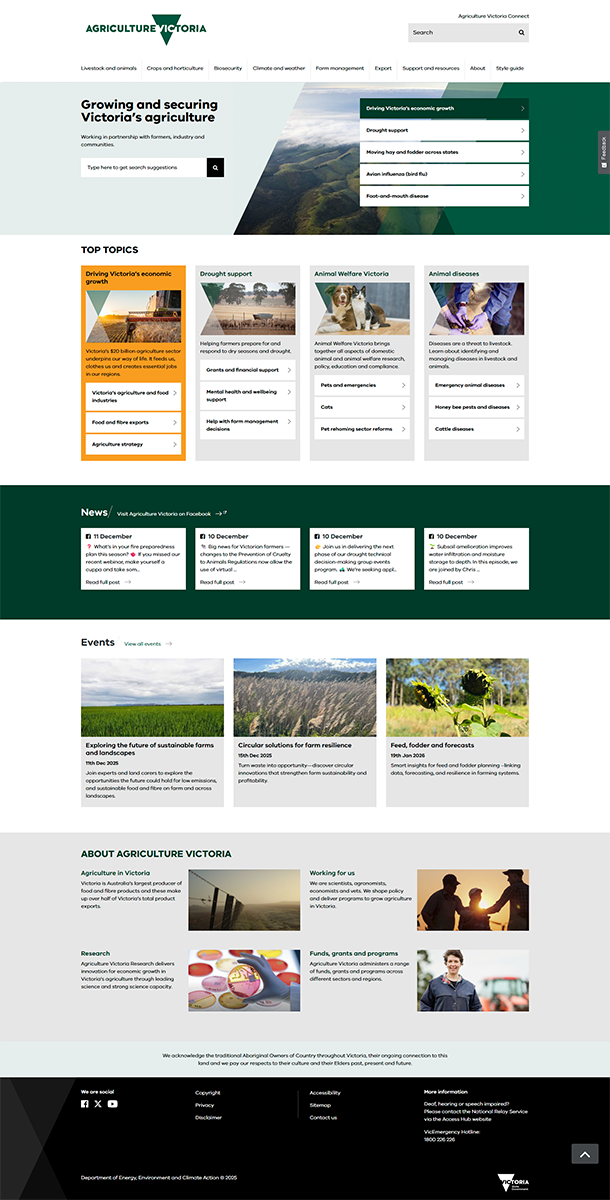 Home page
The website home page allows Agriculture Victoria to showcase critical information. It aims to:
- help users find key information
- help users complete key tasks
- support Agriculture Victoria’s strategic positioning, and showcase key initiatives and priorities
- provide dynamic, timely and relevant advice on the website.
Introduction
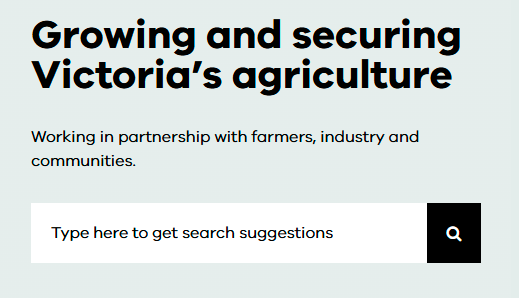
This provides a brief, engaging introduction to Agriculture Victoria, its work and the website. It aligns with Agriculture Victoria’s key messages.
With the introduction is the website search tool, repeated from the page header.
Quick links
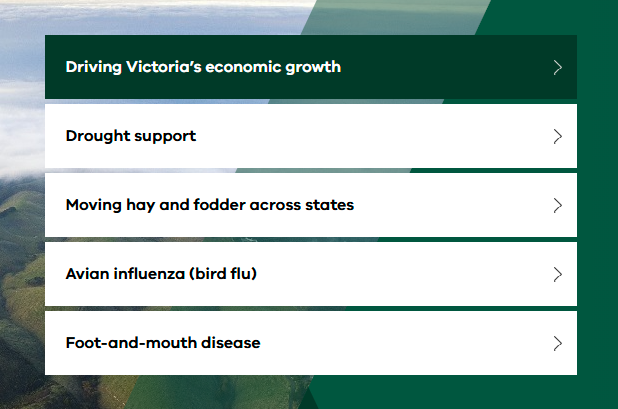
The 5 quick links on the home page link to the most critical content on the website.
These links are in high demand; note, however, that the home page includes a variety of elements that link users to important information.
Quick links are timely and should reflect key current needs, issues and priorities.
Selecting quick links
To be included in the home page quick links, content pages must:
- be high profile
- have a significant impact on a large number of users.
The following factors will also be considered when selecting home page quick links:
- User behaviours
Do we expect that Agriculture Victoria audiences will be coming to the website to learn more about this topic? - Organisational prioritiesDoes this information align to a priority for Agriculture Victoria?
- Information mix
Have we included links to a variety of different topics and types of information? This means quick links should not solely focus on emergency management.
Creating quick links
Quick links should be succinct, clear and descriptive. They help users to understand what they’re clicking through to without adding unnecessary text.
Quick links use sentence case: only the first word and proper nouns are capitalised.
Example
Write this: Avian influenza (bird flu)
Not this: The latest information on Victoria’s avian influenza outbreak
Top topics
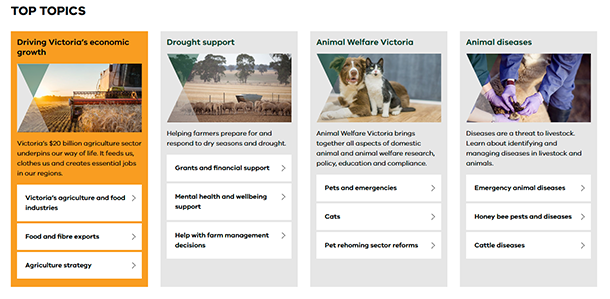
Top topics are used to surface key information from across the website. Content and links in this section should balance 2 needs:
- Content that supports user needs – with a focus on content that’s relevant to large numbers of users
- Content that helps to showcase Agriculture Victoria initiatives or priorities
Top topics link to website information using 2 different components:
- Content collections
- ‘Top topic’ panels
Top topics may link both to enduring content and more timely and topical content. However, this section is designed to be flexible and dynamic; top topic content should be regularly swapped out.
Content collections
Content collections showcase a high-profile topic. Typically, they are used to highlight key initiatives or bring together valuable information from across the site.
Each content collection includes:
- a hero image
- a short, clear heading that states what the topic or initiative is and links to the subject landing page
- a brief summary that explains what the topic or initiative is and why it matters. This helps users to understand whether it is relevant to them
- links to pages or sections relating to the topic across the site.
Example
[Image]
Animal Welfare Victoria brings together all aspects of domestic animal and animal welfare research, policy, education and compliance.
Top topic panels
These panels provide simple, clear links to important, relevant content across the site.
Each top topic panel includes:
- a short, clear heading that matches the name of the page. If needed, the page title may be tweaked for context or clarity, but users should be able to identify that they’ve clicked through to the correct page
- a brief description that provides a succinct, clear summary of the page’s purpose, content and – if necessary – the audience it’s aimed at.
News
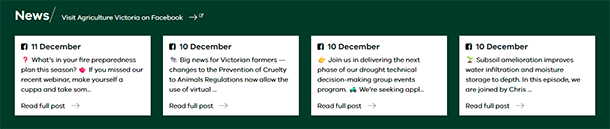
The news section provides timely news from across the website – for example, media releases, disease or pest updates, or new initiatives.
News items are manually curated, based on relevance to website users, timeliness and organisational priorities.
Each news item includes:
- a short heading that clearly explains what the news item is about
- news publication date
- a brief, clear summary of the news.
The news item links to Agriculture Victoria’s Facebook feed.
Example
New cases of avian influenza
25 February 2025
New cases of H7N8 avian influenza (bird flu) have been detected at four poultry farms near Euroa.
Events
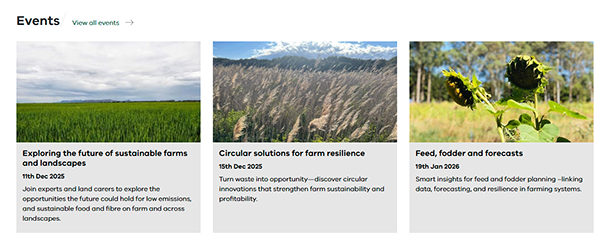
The events section lists upcoming events run by Agriculture Victoria.
Events are automatically pulled from the website’s events page. The 3 events nearest to the current date are shown; if there are fewer than 3 upcoming events the events module will be removed from the home page.
Each event entry shares the ‘teaser’ information from the events listing page, and links through to the event page.
Example
Export
Discover practical advice and support to help you grow your business through exports.
Section, topic and sub-topic pages
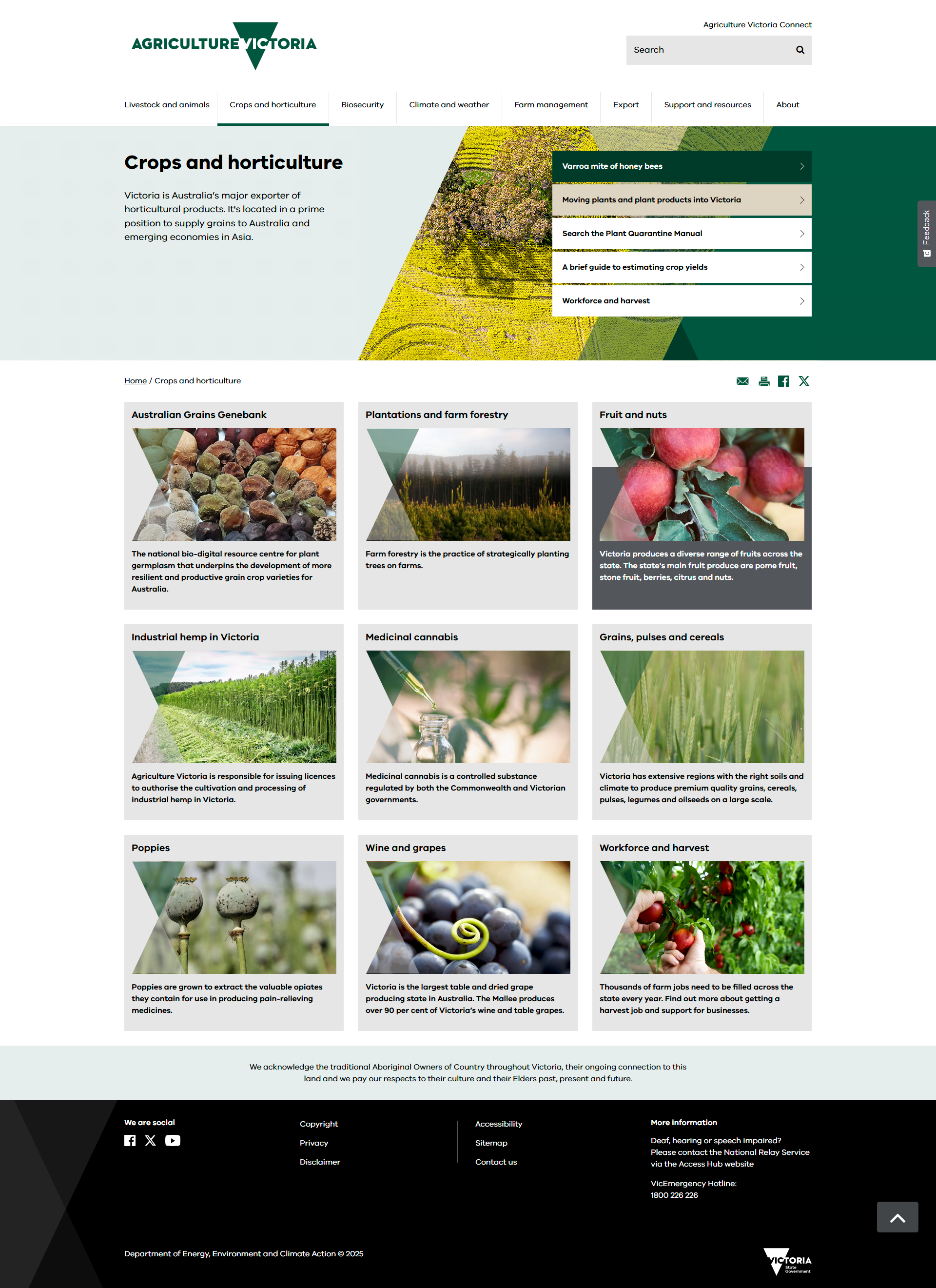
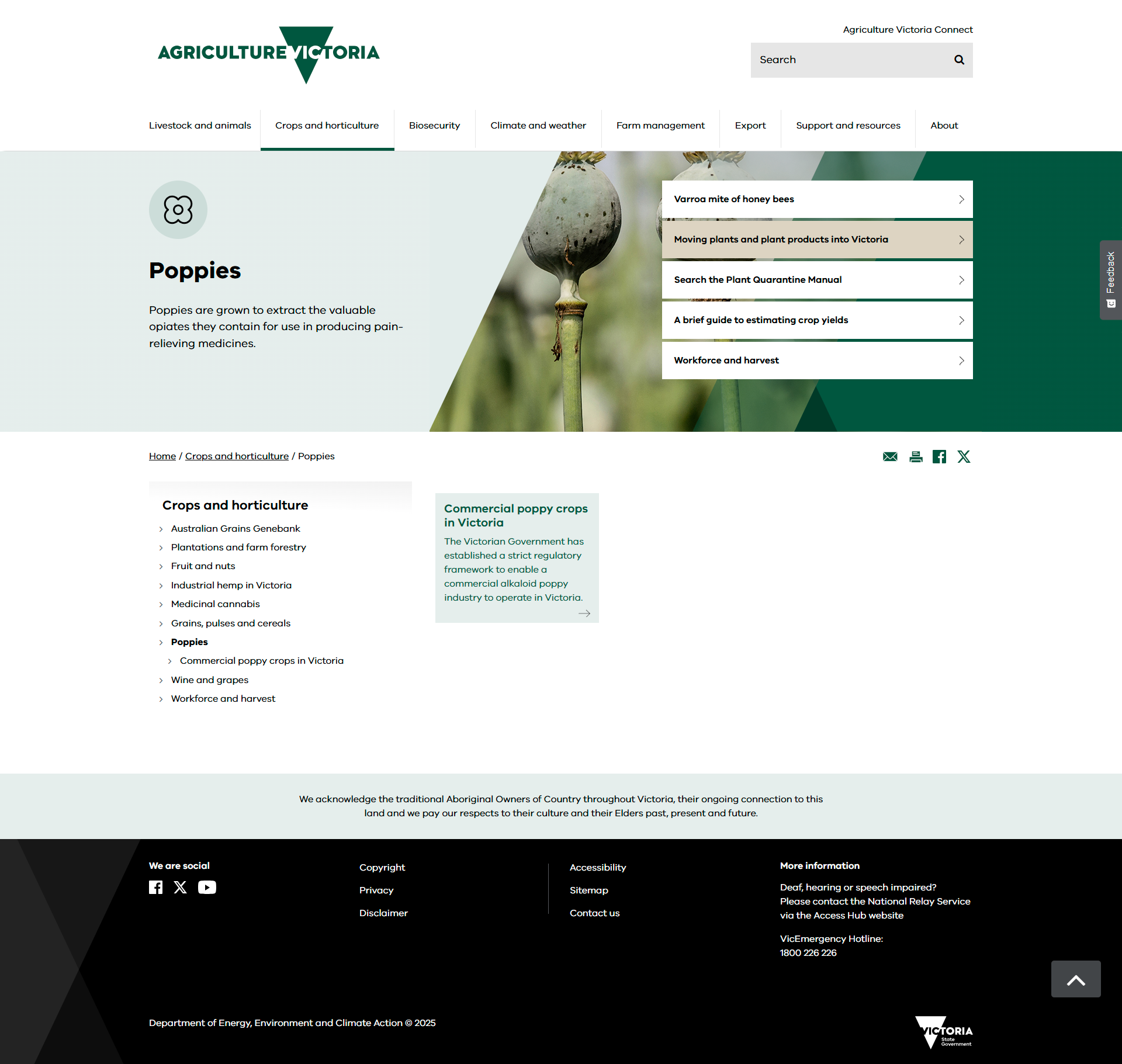
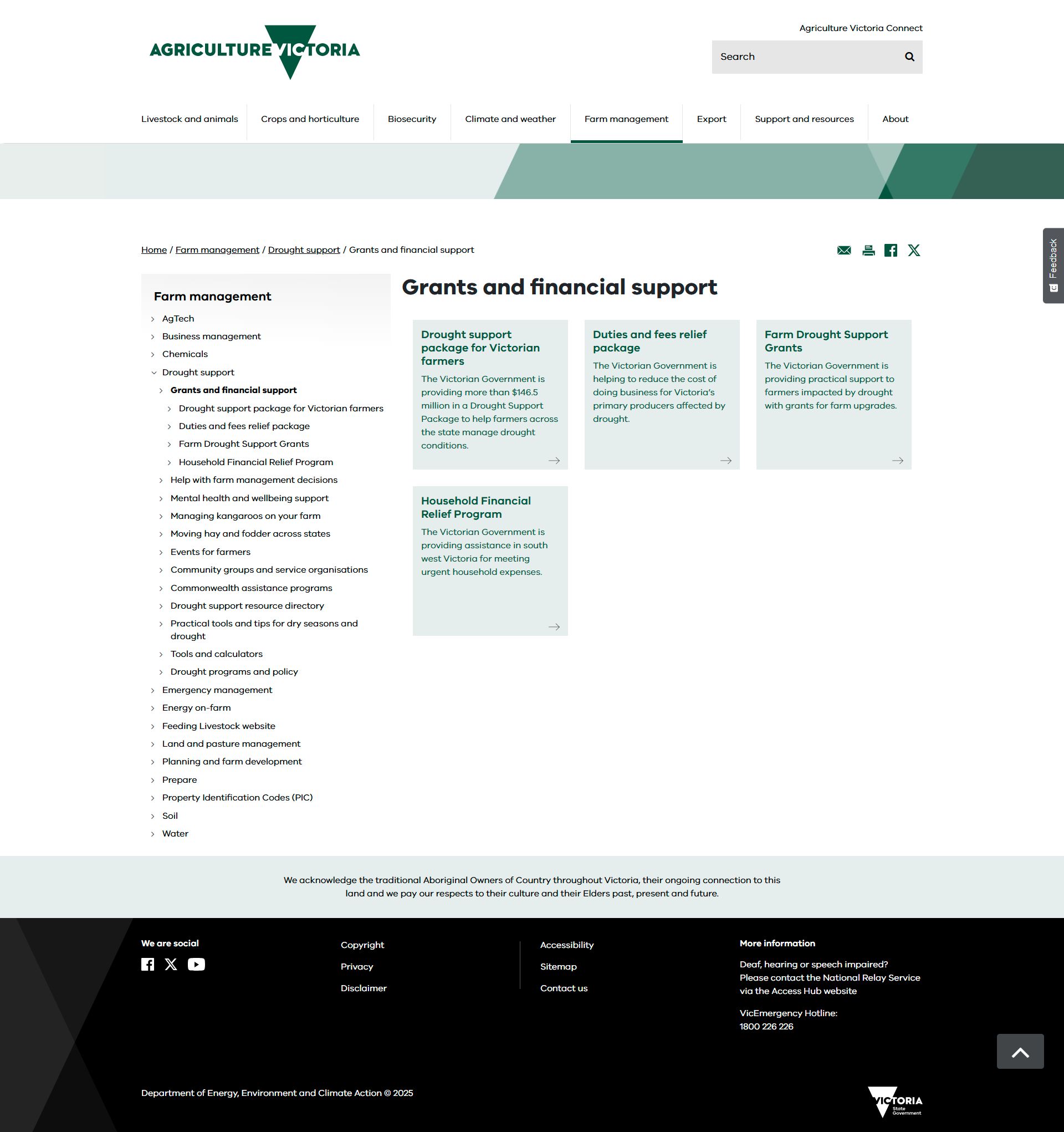
Section, topic and sub-topic pages list the pages contained within a section of the website. They help users to find and navigate to the information they need. Section, topic and sub-topic pages are collectively referred to as landing pages.
While there are design differences that provide a visual hierarchy, content is relatively consistent across the 3 types of landing pages.
The following are the elements that make up a landing page.
Page title
Every landing page includes a page title (heading 1 or H1). This is the name of the page.
The page heading should be clear, specific and distinctive. It tells users whether they’re in the right section of the website, regardless of how they arrived there.
See also: Headings
Introduction
Section, topic and sub-topic pages will include a succinct introduction that explains the section’s purpose and content and, if necessary, its audience. This helps users understand if the section will have the information they need.
This will typically be one to 3 sentences. However, where needed for context, sub-topic landing pages can extend the introduction into a succinct piece of text (around 3 or 4 paragraphs). This can reduce the need for other landing or content pages.
See also: Introduction
Quick links (category and topic pages only)
Every category and topic page includes 3 to 5 ‘quick links’.
The quick links are designed to highlight critical information in the website section. Specifically, they:
- connect users to information that relates to key current needs, issues and priorities (in line with the home page quick links)
- surface information that is important on an ongoing basis.
Selecting quick links
All quick links must provide genuine value to users; they should not be included simply to ‘fill up’ the panel. It’s fine to include fewer than 5 links.
Quick links content must:
- be of value to the business area
- have a significant impact for website users.
The following factors will also be considered when selecting landing page quick links:
- Value: does user data show us that the content is highly valuable to users?
- Findability: is the content important but located deeper in the page hierarchy?
- Action: does the page drive users to complete a key task action?
Quick links must link to pages within the landing page section. They are not used to link to pages located elsewhere on the Agriculture Victoria website.
Creating quick links
Quick links should be succinct, clear and descriptive. They help users to understand what they’re clicking through to.
Quick links use sentence case: only the first word and proper nouns are capitalised.
Example
Write this: Estimating crop yields
Not this: A brief guide to estimating crop yields
Call-to-action panel or box (topic and sub-topic pages only) (optional)
Topic and sub-topic pages may include a box or a call-to-action panel following the introduction.
This can be used to drive a key action, providing vital information or giving prominence to a hero piece of content, such as a video.
Always consider its use critically. Is this valuable enough to interrupt users’ progression down the landing page?
See also: Call-to-action panels | Boxes
‘Inside pages’ tiles
‘Inside pages’ tiles provide links to the pages within the section. They are automatically generated in Squiz.
Tile structure
The order and structure of the ‘inside pages’ tiles reflect the order used in the website navigation. Tiles may be:
- ordered in a hierarchy
- organised and ordered into groups of related or similar content
- ordered alphabetically
Long lists of pages (typically more than 6 pages) will be broken up and grouped using heading 2 (H2) subheadings. These are design devices only (users can’t click through on them). The subheadings match the subheadings used in the navigation menus.
Tile content
- Each ‘inside pages’ tile corresponds to a page within the website section. The tile consists of a heading and a brief description.
- The heading matches the page title of the linked page. The heading uses sentence case – only the first word and proper nouns are capitalised.
- The description provides a succinct, clear summary of the page’s purpose, content and – if necessary – the audience it’s aimed at. It helps users to understand if the page is relevant to them and whether they should click through. It’s okay to use the page introduction here if it addresses these points.
Examples
Write this:
Foot-and-mouth disease
Foot-and-mouth disease is a highly contagious viral disease of livestock. This page explains how to identify and manage foot-and-mouth disease.
Not this:
Foot-and-mouth disease
Learn about foot-and-mouth disease. [Lacks information about the disease or the page’s purpose.]
Write this:
Property identification codes
Property identification codes (PICs) are used to trace diseases and residue issues, and to provide emergency relief. Discover if you need a PIC and how to apply.
Not this:
Property identification codes
Property identification is for tracing and controlling disease and residue problems, locating properties, and contacting owners and industry representatives. [Focuses on benefit to Agriculture Victoria; unclear why users should click through to the page.]
Linking component (optional)
The linking component sits at the bottom of the page and links users to related information elsewhere on the Agriculture Victoria website other Agriculture Victoria channels or if appropriate credible external websites.
While its use is optional, it is an effective way to guide the user journey and link users to relevant information.
See: Linking component
Content pages
Content pages make up most of the website pages on the Agriculture Victoria website. They provide users with information or help them to complete a task.
See also: Content planning guide | Content creation checklist | Key website page elements | Other website page elements (A to Z)
Content page – key elements
Page title
Every page includes a page title (heading 1). This is the name of the page.
The page heading should be clear, specific and distinctive. It tells users whether they’re on the right page, regardless of how they arrived there.
See also: Headings
On this page box (optional)
Long pages or complex content pages may include an ‘on this page’ box to help users find relevant information. The website team will determine if an ‘on this page’ box is needed.
The box provides links to subheadings (heading 2 or H2 tag) within the page.
Introduction
Every page will include a succinct introduction that explains the page’s purpose and content and, if necessary, the audience it’s been written for. This helps users understand if the page addresses their needs.
See also: Introduction
Body text
Every content page includes body text; this provides the page’s information. See body text for guidance on structuring and creating effective body copy.
There is no set word count for body text on a content page. Content should always be as succinct and as focused as possible.
All body text should be broken up with subheadings (by heading 2s); the only exception is when the text is very short (for example, 3 or 4 paragraphs).
See also: Headings
Body text may also include:
- lists
- tables
- in-text links
- other website page elements as required.
Call-to-action panel (recommended if appropriate)
This is a highlight box with a button/focus on user action such as: access to a resource or the next step they should take in a process or subscribing to an e-newsletter. To avoid overwhelming users, we use this feature sparingly. In most cases, this will sit at the bottom of the page or below the relevant text.
See also: Call-to-action panel
Linking component (optional)
The linking component sits at the bottom of the page. It links users to related information on the Agriculture Victoria website, other Agriculture Victoria channels or, if appropriate, credible external websites.
It is an optional but effective way to guide the user journey and link users to relevant information.
See also: Linking component
Specific page types
Events
Events (including upcoming webinars) are only published in the website’s events section. They require specific information and structure and sit within a different (events) format
There are 3 key elements to consider when you’re creating events content:
- A ‘teaser’ that appears on the events listing page
- the event description
- an event image.
You must provide these elements and other event-related information to the website team using the events form.
Completing the events form and submitting to the website team
Create an events request and provide the following information via the events form:
- Event name: This is the name of the event; it should be short, sharp and as clear as possible. If it is part of a series, tell the website team the name of the series and the name of the individual event.
- Description: This is the event teaser and the event description. Guidelines are outlined below.
- Keywords: Provide at least two keywords to help with internal search. (For example, an event on dairy farming might use dairy and farming as keywords.)
Date, time and duration
- Event type: Indicate if this is an in-person or online event. If the event is online, be specific about its format; for example, is it an online workshop, webinar or something else?
- Image: Image guidelines are outlined below.
- Registration link: Your event must provide a way for people to register to attend. Normally this will be a link to the registration platform or payment gateway, such as the relevant Eventbrite registration page.
- Contact: If required, provide contact details for the event organiser; for privacy, this should direct users to a shared email inbox.
Creating event ‘teasers’
The event teaser is a brief, clear, single-sentence summary of the event that helps users easily understand if the event is relevant to them. It explains what the event covers, why it is relevant to users and, if needed, the target audience for the event.
The teaser will also include the event date, name, location and an image. This will be added by the website team, based on information provided in the events template.
Example
Write this: In this one-day workshop for farmers, you’ll discover strategies for supporting your animals’ health and your own wellbeing in challenging times.
Not this: Join us on a walk and talk.
Creating an event description
It’s vital that users can easily understand what they can expect from a session and whether it’s an effective use of their time.
To make sure the event description is as clear and user-friendly as possible, aim to use the following structure where possible. Note that the subheadings may not be relevant for events that are less structured, such as community drop-ins.
- Introduction: This provides a succinct overview of the event: what it’s about, the value it provides and, if relevant, who it is aimed at.
- Speakers [subheading]: This lists the speaker/s at the event and their expertise.
- What you’ll learn [subheading]: This lists the key topics covered in the event. It typically uses a bulleted list.
- Other information [subheading]: Any other relevant information about the event, such as the structure of the day or that the session will include time for questions.
Selecting an image
Each event includes an image that closely relates to the event topic. If required, the website team can provide some presized image options.
- Images must be unique – events that are live at the same time can’t have the same image.
- Headshots cannot be used for the image.
- Images cannot include a text overlay.
- Farm related images must promote farm safety.
- Images should be supplied in JPG or PNG format. They must be a minimum of 800 pixels wide and 600 pixels high. Images will look their best if they are provided in large, high-resolution files. You must only supply images that you have the rights to use.
Grants
All Agriculture Victoria grants are published in the website’s grants section.
To ensure information is easy to find and understand, grants pages follow a consistent structure. Content should be as succinct and focused as possible, providing only the information that is needed by users.
Each grant page includes a page heading (H1). This is the name of the grant, followed by the word ‘grant’. No other descriptors are included (for example, program).
Proper grant names are capitalised; the descriptor ‘grants’ is lowercase.
Example: On-Farm Drought Infrastructure grants
This provides a succinct, clear description of the page’s content and its purpose.
Example: On-Farm Drought Infrastructure grants help farmers in Victoria’s south-west prepare for drought. This page provides information about the grant and how you can apply.
This short box provides key information about the grant at a glance. It helps users quickly understand whether the grant is relevant to them.
It includes the following entries:
- Status: This shows one of the following: opening soon, open or closed.
- Who it is for: This provides a very high-level view of who the grant is aimed at.
- What you get: This is a brief explanation of what the grant provides.
- Closing date: States when applications for the grant close.
Text should be succinct and precise. Further detail will be provided below.
Example:
Status: Open
Who it is for: Drought-affected farmers in Victoria’s south-west.
What you get: Grants of up to $5,000 are available for on-farm improvements to prepare for drought.
Closing date: When applications close.
This outlines the eligibility criteria for the grant. Where possible, use a bulleted list to share this information in an easy-to-scan structure.
Only list the main eligibility criteria and direct users to the guidelines for the full criteria.
This is a succinct explanation that outlines:
- what is the grant for
- what the grant hopes to achieve
- why is the grant available
- how much funding applicants can receive
- this section should be very focused and practical and should include only the necessary information.
This provides an in-text link to grant guidelines, published as HTML page/s. PDFs should not be included unless user research indicates there is a clear user need for a PDF.
This provides an in-text link to the application form.
This lists key dates relating to the grants, including opening, closing and notification dates.
This acknowledges the funding source of the grant as needed, including the total amount of funding provided.
If relevant, this provides contact details for more information.
This will link to a shared email inbox. Personal contact details should be avoided.
The Customer Contact Centre (CCC) should only be listed if:
- There is other information that is not published on the website.
- The CCC has access to a knowledge article that provides this information or if there is a particular call to action requiring a call to the CCC for action.
The linking component sits at the bottom of the page. It links users to related information on the Agriculture Victoria website (for example, to information about the program that funds the grant). It may also be used to link users to other Agriculture Victoria channels or credible external websites.
See linking component for more guidance.
Long reports and publications
HTML is the default format for all Agriculture Victoria content. This means that reports or other long or detailed publications – such as strategies or research – should be published as website pages.
If there is a clear user need or compliance requirement content may also be published in PDF format. However, this should be a secondary source of information for content that is already published on the website page.
Creating and publishing reports and long or detailed publications in HTML requires planning. To make sure your content is as effective as possible, plan the report or publication as digital content from the outset. The website team can provide guidance on this.
See also: PDFs and other documents
Creating long reports and publications in HTML
To create an effective digital report or publication:
- Map out your content and organise it into logical, clear sections that support user information needs. Each section becomes a content page.
- Plan images, graphs, maps and tables from the outset. Ensure they are accessible.
- Create a landing page for the report or publication. This provides a brief overview of the report.
- On content pages, the ‘On this page’ feature can help user navigation by dividing content into logical sections that are easy to access, each with an H2 heading.
- Include links to the previous and following sections at the bottom of each content page.